DocsCompany setup
Company setup
Configure company profile, org structure, approval policies, payroll defaults, and what the assistant may do.
The setup wizard on /setup is the single place to see what is left before the workspace is launch-ready. It scores five steps — company profile, teams and locations, first employees, payroll readiness, and approvals and audit — and every blocker links to the screen where it can be resolved. A five-step stepper sits above the checklist: completed steps show a check, the next step is highlighted, and blocked steps stay visible with their status.
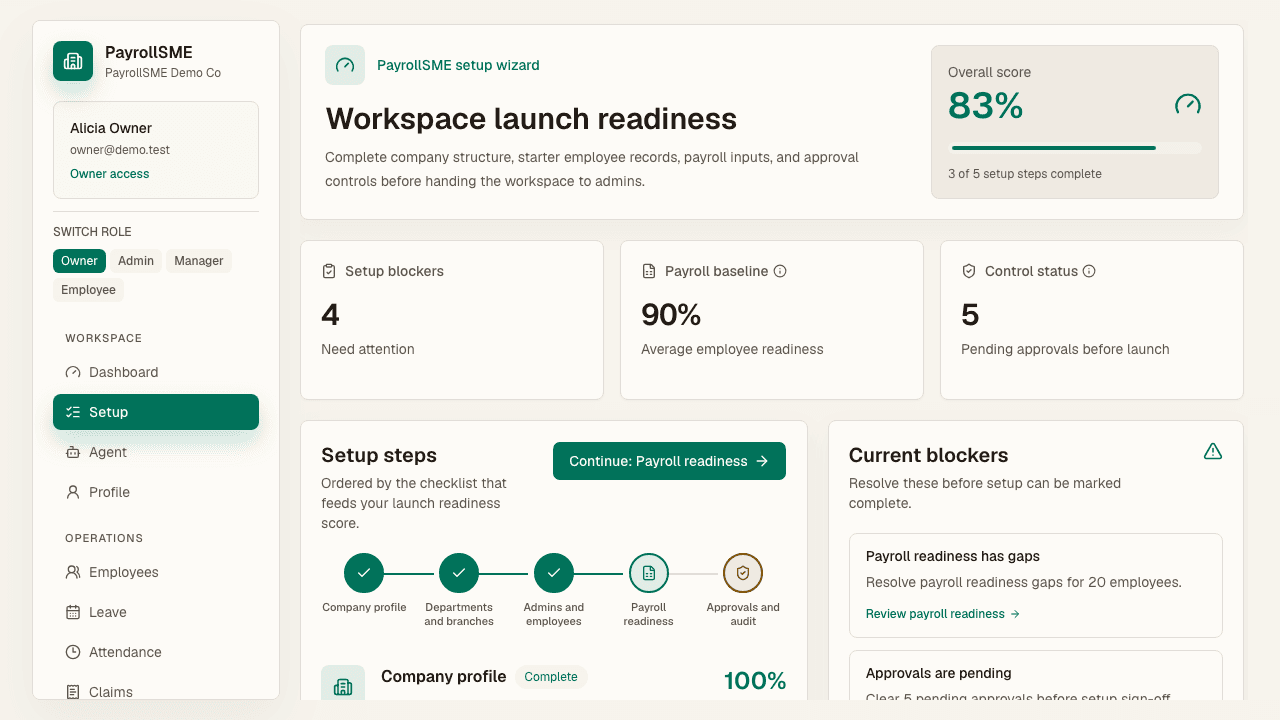
Setup wizard
On /setup:
- Review the Overall score, Setup blockers, Payroll baseline (average employee readiness), and Control status (pending approvals before launch).
- Use the stepper to see where you are in the five steps, then open each step to work through company profile, teams and locations, first employees, payroll readiness, and approval/audit controls.
- Use the quick actions to jump to company profile, employee records with missing fields, or payroll readiness gaps.
The score rises as company data and staff records are completed. The approvals and audit step also counts whether the approval policies are configured and whether the owner has two-factor authentication enabled. When there are no blockers left, the workspace is ready for sign-off.
Company profile
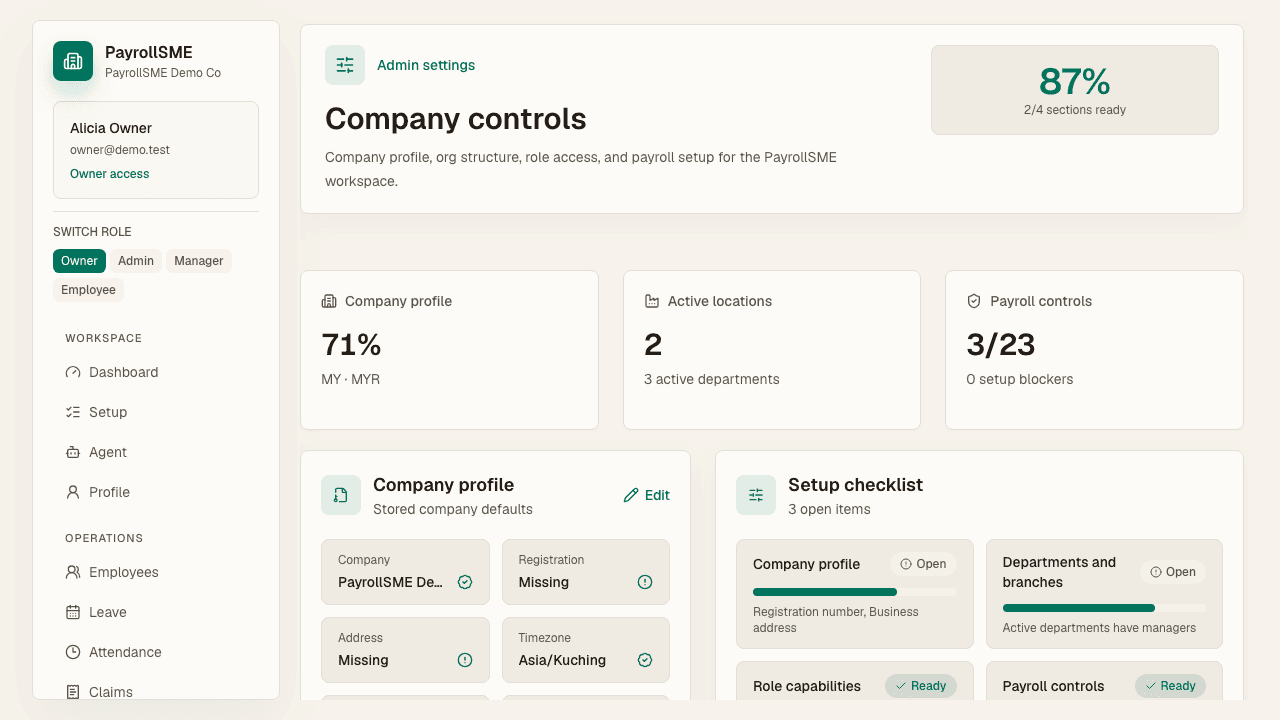
The company profile is edited on /settings#profile and on /setup/company:
- Required: company name, country (a code such as
MY), and currency (a code such asMYR). - Optional but useful: registration number, business address, timezone, and payroll cycle preference.
Country and currency are codes that other modules read, so they are dropdowns rather than free text. Getting timezone and currency right early matters because payroll cycles, leave days, and statutory figures all inherit them.
Org structure
Departments, branches, leave types, and claim categories are managed with per-row editing on /settings#organization:
- Departments — create, edit, retire, and set status.
- Branches — same per-row treatment, with an optional address per branch.
- Leave types — the seeded defaults are AL (annual), MC (medical), and UL (unpaid). Each type carries paid/unpaid and attachment flags, and can be activated or deactivated.
- Claim categories — monthly and yearly limits, receipt requirements, and unusual-amount thresholds per category.
/setup/company shows the counts for all four so you know where you stand, and links to Settings when something is missing.
Approval policies
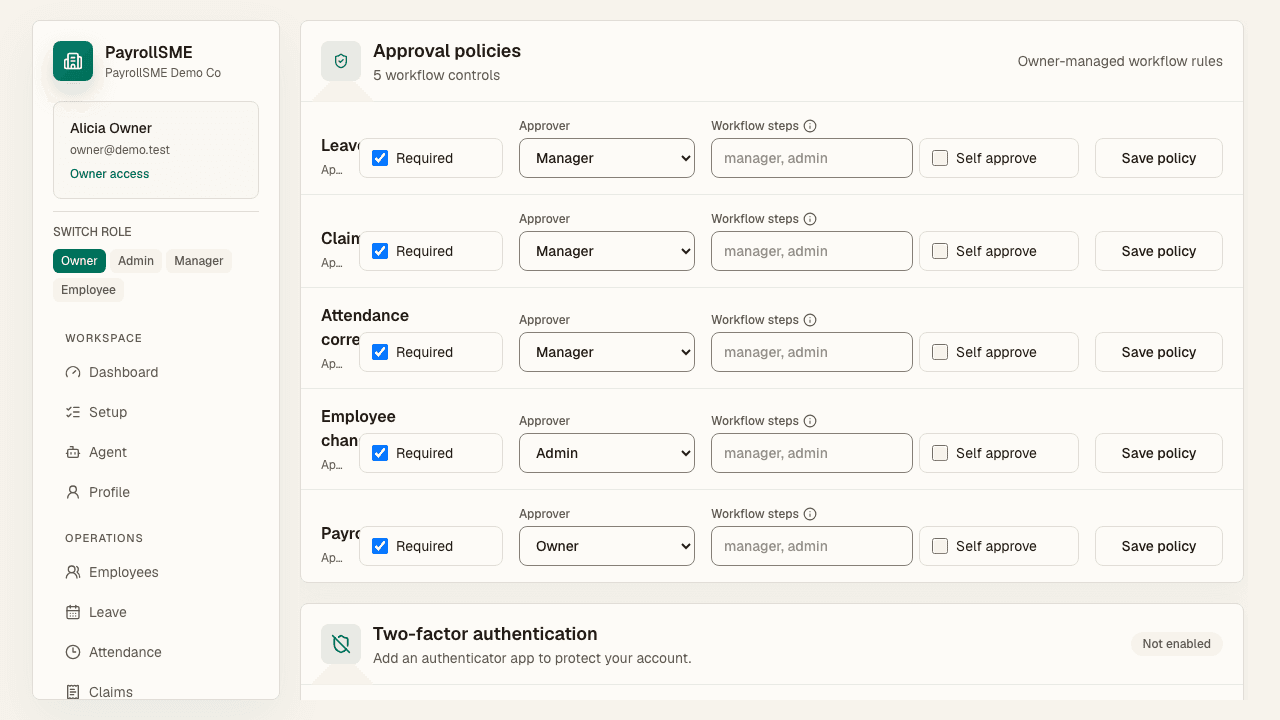
On /settings#policies, set the approver role per workflow. For multi-level leave or claim approval, enter a comma-separated sequence in Workflow steps, for example manager, admin, and save. Only owners can change approval policies, and each save is written to the audit log.
The setup wizard treats a workspace with no saved policies as blocked (/settings#policies), so the first policy save is part of launch readiness.
What the assistant may do
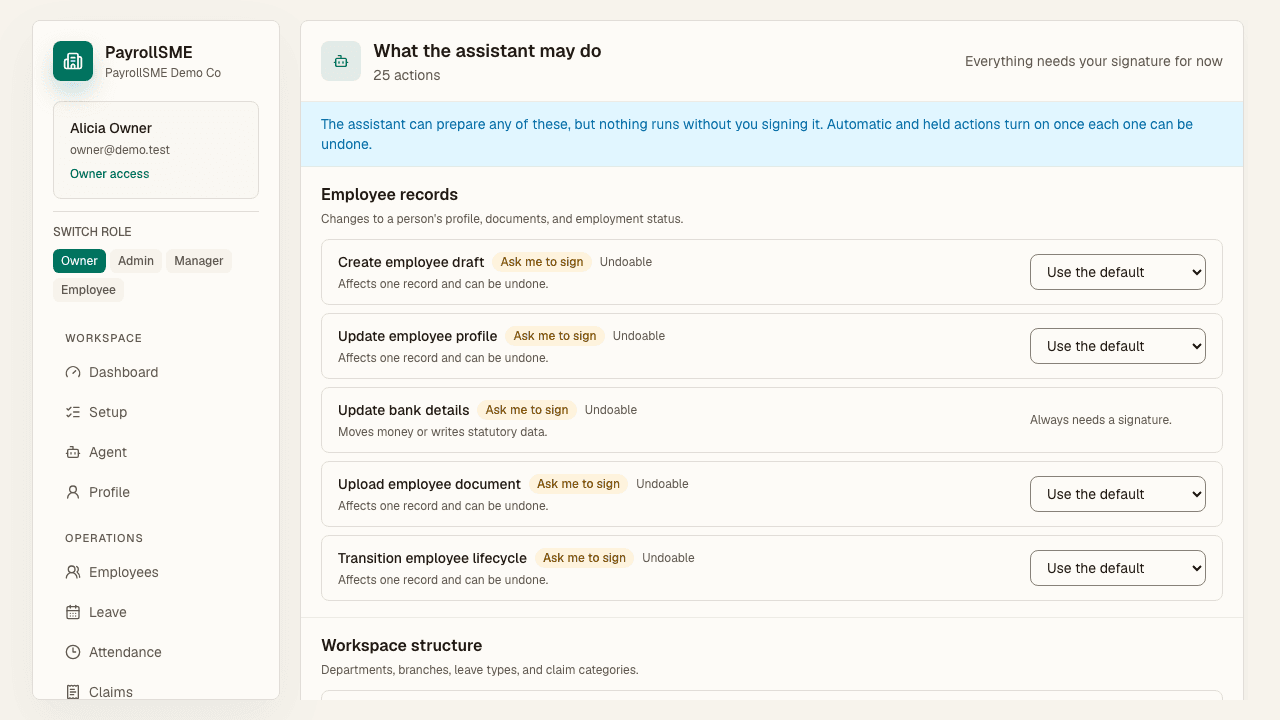
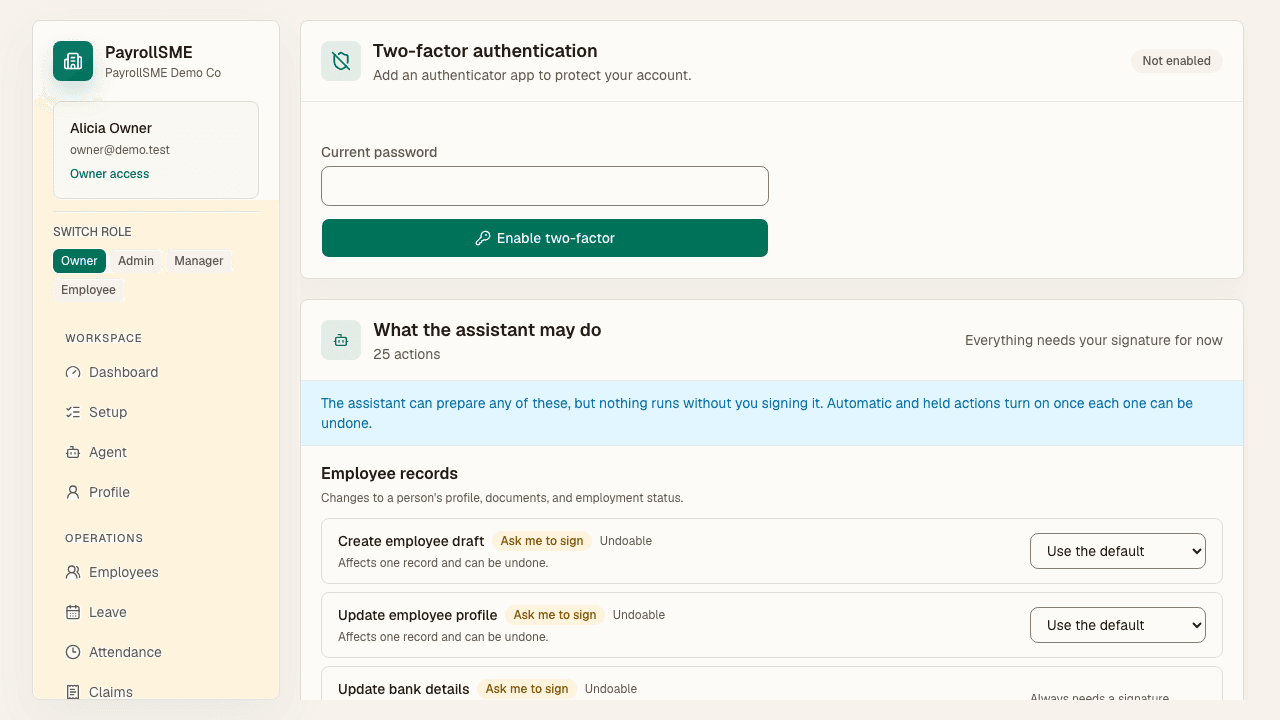
On /settings#automation, review the actions the assistant can prepare, grouped by area. Every action has a gate:
| Gate | Meaning |
|---|---|
| Ask me to sign | The assistant prepares the change and you approve it before anything runs. |
| Do it after a hold | The change runs automatically after a hold period. |
| Just do it | The change runs immediately. |
Today every action is set to Ask me to sign — nothing runs without your signature. Automatic and held actions turn on only once each action can be undone.
Two-factor authentication
Enable two-factor authentication on /settings with the owner password, scan the TOTP URI, confirm a code, and save the backup codes somewhere safe.
The setup wizard tracks whether the owner account has 2FA enabled and raises a blocker (/settings#security) until it is.
Payroll cycle
Confirm the open payroll cycle name, period start, and period end on /setup/company. The period end must be after the period start — the form rejects an invalid or partial cycle with a clear message instead of silently dropping it. The first cycle must be open before /payroll can generate a draft.
Acceptance check
- Each save shows the success banner and appears in the audit log (
/auditfiltered by the relevant entity type). - Setup health shows departments, branches, leave types, claim categories, and payroll cycles as present.
- The wizard shows no blockers for approval policies or two-factor authentication once both are configured.
- The first payroll cycle is open and ready for a draft.
- Every assistant action still requires your signature.