DocsPlatform
Roles and permissions
Who can see what, who approves what, and how tenant isolation keeps your company scoped.
Every page resolves your company before it loads a single record. Nobody outside your workspace can see your company at all.
Roles
PayrollSME has five workspace roles:
| Role | What it can do |
|---|---|
| Owner | Full control, including member access and approval policies. |
| Admin | Runs the workspace day to day. |
| Manager | Approves and reviews; does not see the payroll panel on the dashboard. |
| Employee | Uses the staff portal for their own leave, claims, attendance, and payslips. |
| Accountant | Sees payroll figures and reports — not IC numbers, addresses, or bank details. |
Workspace members
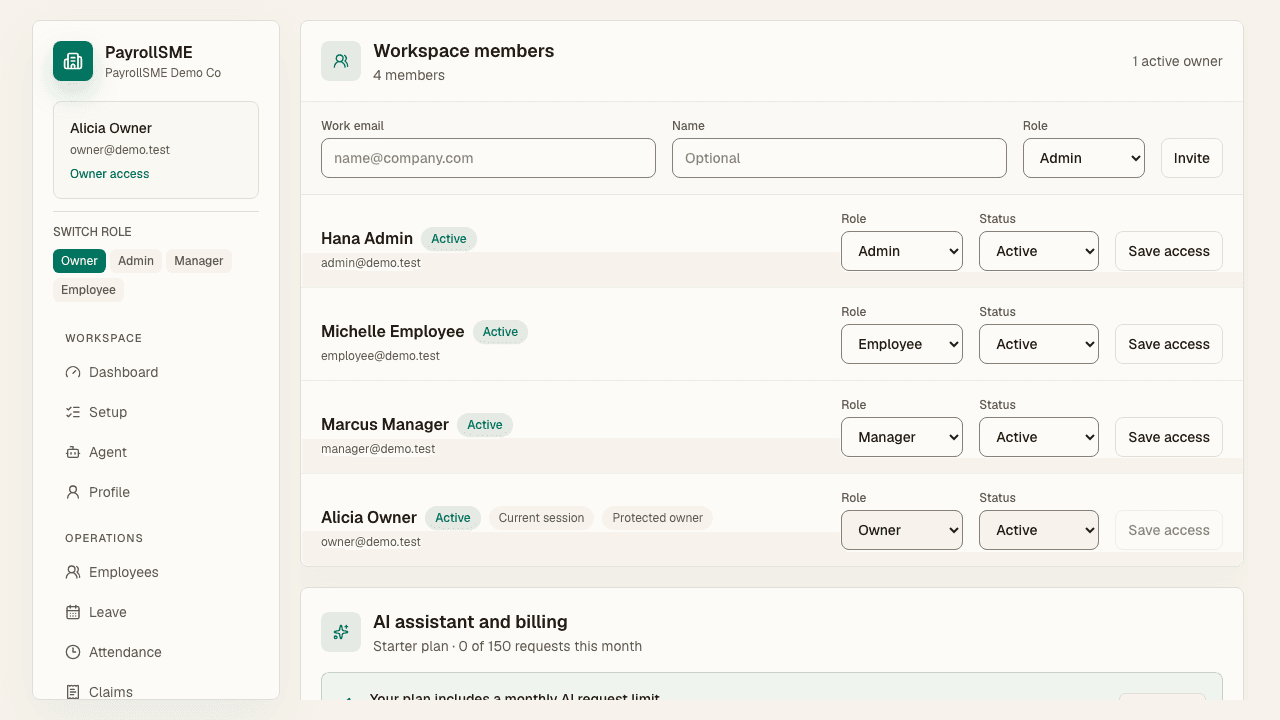
On /settings#members:
- Invite members by email and choose an inviteable role.
- Track membership status (invited, active, and so on).
- Change member access — only workspace owners can change member access, and an owner cannot change their own access from the same account.
Approval policies
Approver roles are set per workflow on /settings#policies. Multi-level approval uses a comma-separated step chain such as manager, admin, and only owners can change the policies.
The staff portal
Employees and managers have their own portal at /me:
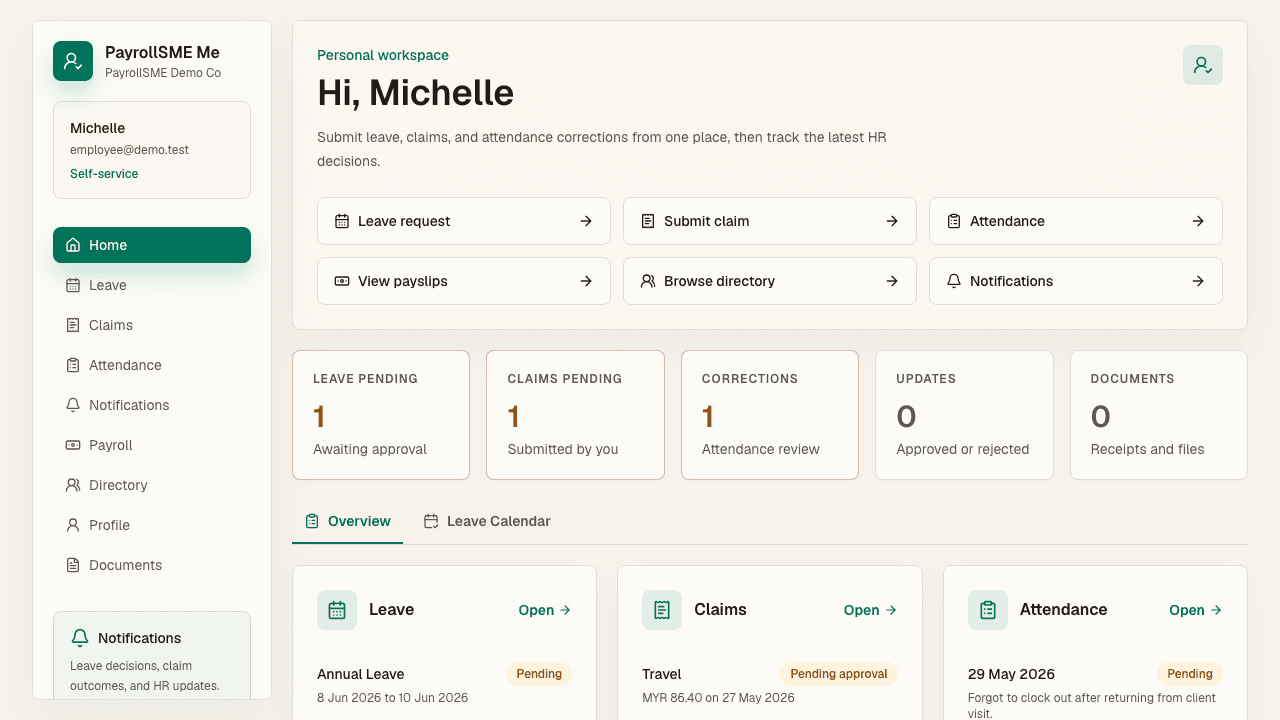
- Home — a personal dashboard with quick actions and request status.
- Leave — submit and track their own leave.
- Claims — upload receipts and track reimbursement status.
- Attendance — record clock times and submit corrections.
- Payroll — view their own payslips, earnings, and deductions.
- Directory — browse colleagues by name, department, or branch.
- Notifications — leave decisions, claim outcomes, and other activity from HR.
- Documents — receipts and documents attached to their own profile.
- Profile — their employee basics, employment details, and payroll identifiers.
Staff do not have the AI assistant. Sensitive company data such as other employees' salaries and statutory details stays in the admin workspace.
Acceptance check
- A user outside the workspace cannot open it.
- Staff and accountant roles see only what their role allows.
- Only owners can change member access and approval policies.